While I’m making recommendations and shilling other people’s products and generally turning into some weird kind of lifestyle blogger, allow me to talk about my tiny keyboard.
You see, there was an iOS-only app called Zeitgeist, which I took ideas from and turned into my micro-journalling app YouSky. But it only stores data in the browser. So I have to type on that devices.
Then there’s Signal, which has a computer app but it doesn’t work very well. And I’ve been having some good chats on Signal recently.
And there’s just times when I want to do some proper writing, but only have my phone handy, or it’s not a big enough job to get the laptop out.
So I wanted a small keyboard.
I looked at the Royal Kludge folding keyboards – my son has one, and it’s pretty nice – but they were just too big and I tried it with iOS and it didn’t work so well – I think it’s a Windows/Linux keyboard really.
I looked at the recently-announced Clicks Power Keyboard, but it was too expensive and too small.
I looked at Logitech’s K380, which I used to own and was good. But it was just that little bit too big.
Surely there is something in-between. They can manufacture anything in China these days.
And so they can. I found a cheap (£20) mini keyboard with stand – the “CACOE dual-channel, bluetooth mini-keyboard“. And I thought it was worth a punt. (It also seems to be available under the name “Doohoeek“)
And it’s surprisingly good!
I mean, it’s good for a £20 mini keyboard. You’re not going to type on it for any great length of time. The keys are cramped. The keyboard doesn’t feel cheap, but the case and stand do, though they work just fine. But if I want to type something longer on my phone, it’s really very good and way better than tapping on glass.
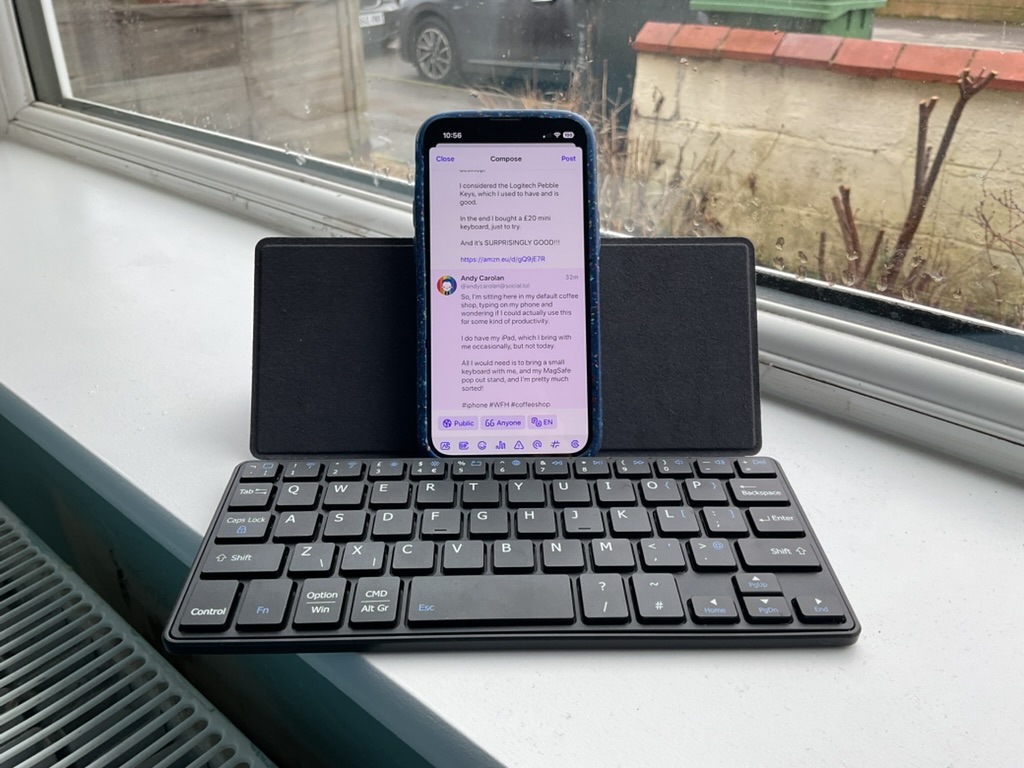
(iPhone 13 mini for scale!)
If I have niggles, they are:
- The power switch is on the back, making it hard to turn off and on. It should be on the side.
- The space bar is really annoyingly small. I keep hitting the “/” key next to it! But I’m getting used to it.
- The single-quote needing a function-key combo, and Esc being function-Space are also annoying.
But really, it’s a £20 pocket-size keyboard!! Who cares?!
Using it with iOS
If you like this idea, then you should know that you can use this for more than just typing. If you’re a keyboard shortcut fan, there are things you should know.
- You can open apps, and navigate to things using the iOS “Spotlight” search by pressing Cmd-Space.
- Though for some reason, Cmd-Tab doesn’t seem to switch apps. Booo.
- Most keyboards like this have a “home” button. In this case it’s holding the function key and pressing the button in the top-left. This will wake my phone, and go to the home screen.
- When typing, Alt-arrow-keys and Cmd-arrow-keys work just like they do on a laptop for navigating words and lines.
- Many apps support shortcuts similar to desktop apps. It’s app specific, but for examples, my web browser lets me Cmd-L to the search bar, Cmd-Y to my history, and so on. Cmd-I and Cmd-B tend to do bold and italic in text editors. Cmd-Z/X/C/V tend to be undo/cut/copy/paste.
- Text replacements are really good if you type long things a lot. Get them set up!
- There are some accessibility settings that let you take complete control using special accessibility keys. I’ll leave you to try those out for yourself.
- Some (but not all) of the iPad keyboard shortcuts work.
- There is a “Globe” button accessed on this keyboard with Fn-6. Holding this with “S” opens Siri. Holding it and and pressing “C” opens control center, but you can’t do anything once it’s open.
- Pressing the “Home” button combination twice opens the app switcher, but you don’t seem able to navigate it.
So that’s what I’ve learned. Hopefully it’s useful to you if you too decide to connect an external keyboard to your iPhone!